



MS Word 2021 Style Group – Complete Guide for Beginners
If you are learning Microsoft Word 2021, understanding the Style Group is an important step toward creating professional documents. Many beginners manually change the font size, color, bold, and spacing for every heading. This method takes time and often results in an inconsistent document.
Thank you for reading this post, don't forget to subscribe!The Style Group solves this problem by allowing you to apply professional formatting with a single click. Whether you are creating a school assignment, college project, office report, resume, research paper, or business document, the Style Group helps maintain a clean and consistent appearance throughout your document.
In this complete guide, you will learn every important feature of the MS Word 2021 Style Group in simple language with practical examples.
What is the Style Group in MS Word?
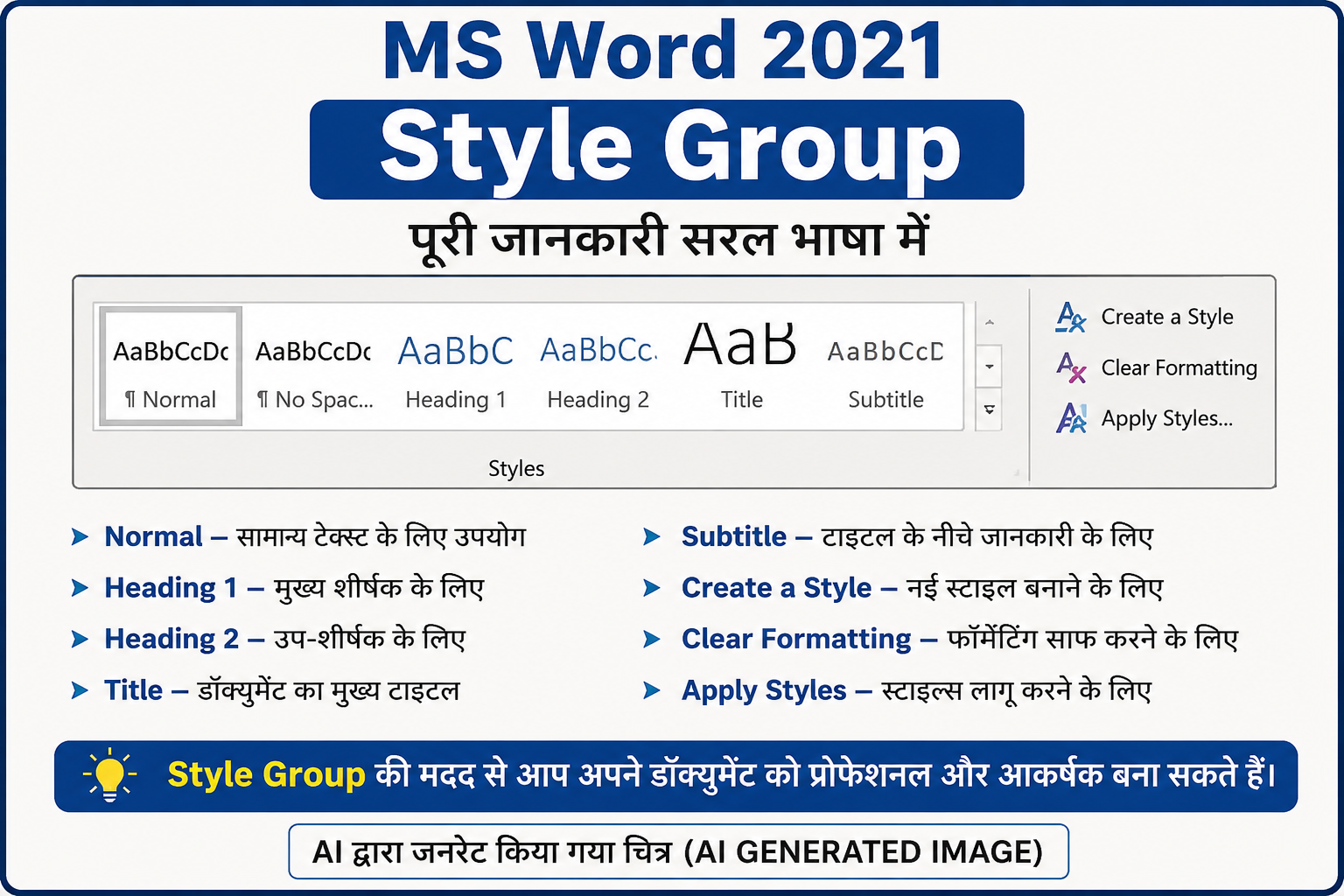
The Style Group is a collection of predefined formatting styles available on the Home tab in Microsoft Word. Instead of formatting text manually every time, you can simply select a style and apply it instantly.
A style can include:
- Font Style
- Font Size
- Font Color
- Bold or Italic Formatting
- Paragraph Alignment
- Line Spacing
- Paragraph Spacing
In simple words:
The Style Group helps you give your entire document a professional and consistent look with just one click.
Where is the Style Group Located?
Open Microsoft Word 2021.
Go to:
Home Tab → Styles Group
It is located immediately after the Paragraph Group.
Why Should You Use the Style Group?
Imagine writing a project with 20 headings. If you manually format each heading, it can take a lot of time.
With the Style Group:
- One click formats the heading.
- Every heading looks identical.
- The document appears professional.
- Editing becomes much easier.
Tools Available in the Style Group
1. Normal Style
Normal is the default style used for regular text.
Best for:
- Paragraphs
- Notes
- General Content
Example:
This is a normal paragraph written using the Normal Style.
2. Heading 1
Heading 1 is used for the main heading of a chapter or section.
Example:
Chapter 1 – Introduction
It creates a large and bold heading.
3. Heading 2
Heading 2 is used for subheadings.
Example:
Features of MS Word
4. Heading 3
Heading 3 is used for smaller headings inside a section.
Example:
Font Formatting
5. Title Style
The Title Style is used for the main title of the document.
Example:
MS Word 2021 Complete Guide
6. Subtitle Style
Subtitle is used below the main title to provide additional information.
Example:
A Complete Beginner’s Tutorial
7. Styles Gallery
The Styles Gallery contains multiple ready-made styles.
Simply select your text and click any style to apply it instantly.
8. Create a Style
If you frequently use a specific formatting design, you can create your own custom style.
Example:
You can create a style named Company Heading and use it in all future documents.
9. Modify Style
The Modify Style option allows you to edit an existing style.
You can change:
- Font
- Size
- Color
- Paragraph Spacing
- Alignment
Every paragraph using that style will update automatically.
10. Apply Styles
Apply Styles allows you to quickly search and apply available styles without opening the full gallery.
It is useful when working on large documents.
11. Change Styles
This option changes the overall appearance of your document.
You can change:
- Style Set
- Fonts
- Colors
- Paragraph Spacing
This is one of the fastest ways to redesign an entire document.
Advantages of Using the Style Group
Using the Style Group offers many benefits:
- Saves formatting time
- Gives a professional appearance
- Maintains consistency
- Makes documents easier to read
- Helps create automatic Table of Contents
- Makes editing faster
- Ideal for long reports and books
Real-Life Uses of the Style Group
The Style Group is commonly used while creating:
- School Assignments
- College Projects
- Office Reports
- Research Papers
- Business Proposals
- E-books
- User Manuals
- Training Materials
- Resumes
- Company Documents
Keyboard Shortcuts
| Function | Shortcut |
|---|---|
| Apply Styles | Ctrl + Shift + S |
| Heading 1 | Ctrl + Alt + 1 |
| Heading 2 | Ctrl + Alt + 2 |
| Heading 3 | Ctrl + Alt + 3 |
Practice Exercise
Practice these tasks:
- Create a document title using Title Style.
- Add three chapters using Heading 1.
- Create subtopics using Heading 2.
- Write the content using Normal Style.
- Create your own custom style.
- Modify an existing style and observe the changes.
Tips for Beginners
- Always use Heading 1 for main topics.
- Use Heading 2 for subtopics.
- Avoid manually changing every heading.
- Keep the same style throughout the document.
- Use styles to generate an automatic Table of Contents.
Conclusion
The Style Group is one of the most useful features in MS Word 2021. It helps you create professional, consistent, and well-organized documents without spending extra time on manual formatting.
Whether you are a student, teacher, office employee, blogger, or professional, learning the Style Group will improve both your productivity and the quality of your documents.
If you want your documents to look neat and professional, mastering the Style Group is essential.