



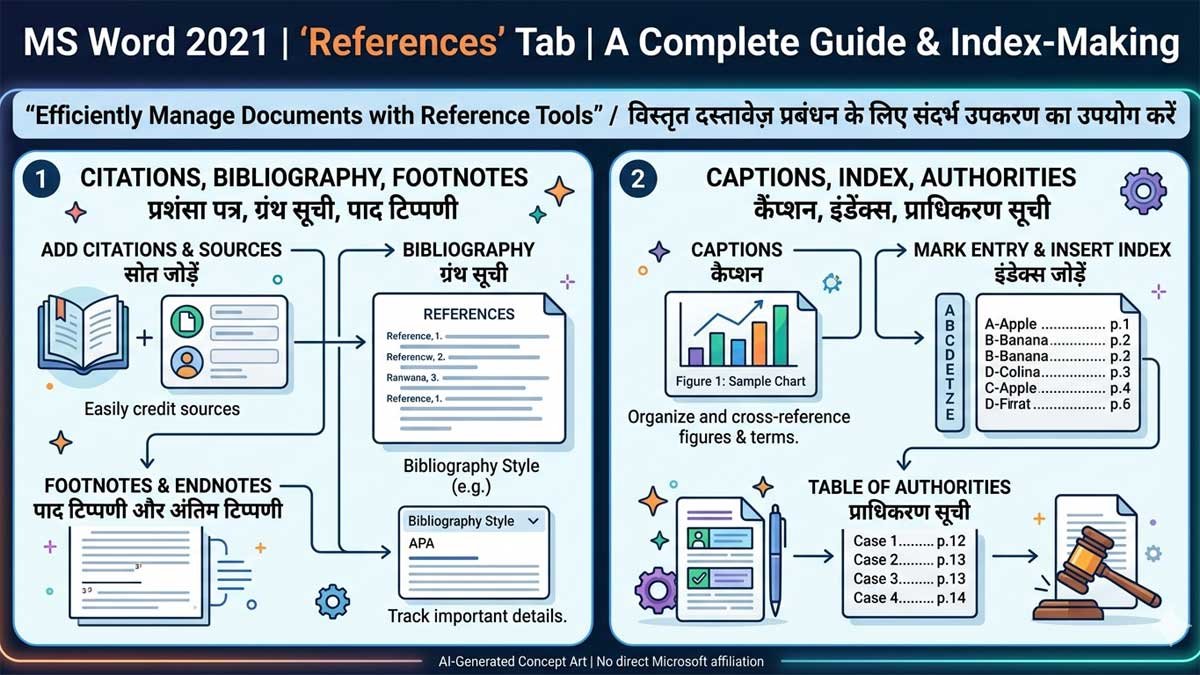
The References Tab in Microsoft Word 2021 is an important section of the Ribbon that helps you create professional, well-organized and easy-to-read documents. It is especially useful for students, teachers, researchers, writers and office professionals.
Thank you for reading this post, don't forget to subscribe!Using the References Tab, you can create a Table of Contents, Footnotes, Endnotes, Citations, Bibliography, Captions, Table of Figures, Cross-References, Index and Table of Authorities.
In this guide, we will explain the important tools of the MS Word 2021 References Tab and how you can use them.
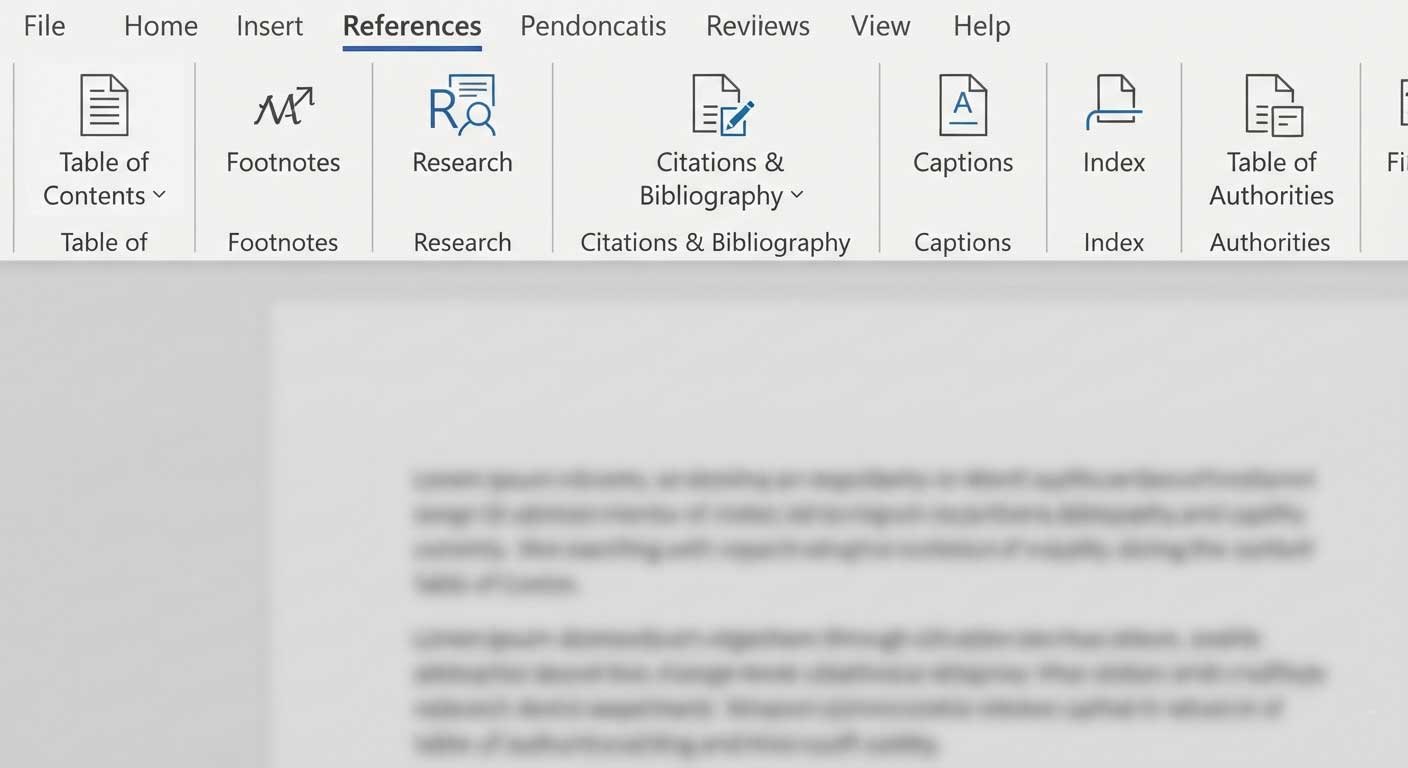
What Is the References Tab in MS Word 2021?
The References Tab contains tools that help you manage information and references inside a document.
When you are working on a small document, you may not need all these tools. However, when you create a long project, research paper, thesis, book or professional report, these features can save a lot of time.
The References Tab mainly contains tools for:
- Creating a Table of Contents
- Adding Footnotes and Endnotes
- Adding Citations
- Creating a Bibliography
- Adding Captions
- Creating a Table of Figures
- Inserting Cross-References
- Creating an Index
- Creating a Table of Authorities
1. Table of Contents
The Table of Contents is one of the most useful tools in the References Tab.
It creates a list of headings and subheadings in your document along with their page numbers.
For example, if you are creating a computer course book, your Table of Contents might look like:
- Introduction
- MS Word Basics
- Home Tab
- Insert Tab
- References Tab
- Page Layout
- Review Tab
- Conclusion
Instead of typing this list manually, Word can create it automatically.
How to Insert a Table of Contents
- Apply Heading styles to your document headings.
- Go to the References tab.
- Click Table of Contents.
- Select an automatic style.
- Word will create the Table of Contents.
If you add or remove content later, you can update the Table of Contents.
2. Footnotes
A Footnote is a note that appears at the bottom of the page.
It is useful when you want to provide additional information, an explanation or a source without disturbing the main text.
For example:
Microsoft Word is a popular word-processing application.¹
The explanation or source for ¹ can appear at the bottom of the page.
How to Insert a Footnote
- Place the cursor after the required word or sentence.
- Open the References tab.
- Click Insert Footnote.
- Word will insert a reference number.
- Type your note at the bottom of the page.
Footnotes are commonly used in academic assignments, research papers and books.
3. Endnotes
Endnotes work similarly to footnotes, but the notes appear at the end of the document or section instead of the bottom of the current page.
They are useful when a document contains many references and you want to keep the pages clean.
Footnote vs Endnote
Footnote: Appears at the bottom of the current page.
Endnote: Appears at the end of the document or section.
Both features are useful for adding explanations, references and additional information.
4. Citations
A Citation identifies the source of information used in your document.
For example, if you use information from a book, website or research paper, you can add a citation to show where the information came from.
Word allows you to add and manage sources directly from the References Tab.
How to Add a Citation
- Place the cursor where you want the citation.
- Go to References.
- Select a citation style.
- Click Insert Citation.
- Select Add New Source.
- Enter the source information.
- Click OK.
You can later reuse the same source in another part of your document.
5. Citation Style
Microsoft Word allows you to select different citation styles.
Common styles include:
- APA
- MLA
- Chicago
- IEEE
- ISO 690
- GOST
Different schools, colleges and universities may require different citation styles, so selecting the correct style is important.
6. Manage Sources
The Manage Sources option helps you organize the sources used in your document.
You can add new sources, edit existing sources and reuse sources.
For example, you may have sources from:
- Books
- Websites
- Journals
- Research papers
- Reports
Instead of entering the same information repeatedly, you can manage your sources from one place.
7. Bibliography
A Bibliography is a list of sources used in your document.
After adding citations, Word can automatically create a bibliography.
How to Insert a Bibliography
- Go to the end of your document.
- Open the References tab.
- Click Bibliography.
- Select a bibliography format.
Word will generate the bibliography based on the sources you have added.
This feature is particularly useful for research papers, assignments, dissertations and academic projects.
8. Captions
The Captions tool is used to add labels to pictures, tables, charts and other objects.
For example:
Figure 1: MS Word 2021 Interface
or
Table 1: Computer Course Details
Captions make documents easier to understand and help readers identify images and tables.
How to Add a Caption
- Select an image or table.
- Go to the References tab.
- Click Insert Caption.
- Choose the label.
- Enter your caption.
- Click OK.
9. Table of Figures
If your document contains many images, charts or tables, the Table of Figures tool can create a list of them.
For example:
Table of Figures
- Figure 1 – MS Word Interface
- Figure 2 – Home Tab
- Figure 3 – References Tab
- Figure 4 – Page Layout
This feature is very useful for long reports, books, projects and research papers.
To use it effectively, you should add captions to your images and tables first.
10. Cross-Reference
The Cross-Reference tool allows you to create a reference to another part of the same document.
For example, you can write:
See Figure 2
or
See Chapter 3
Instead of manually typing page numbers, Word can create a reference that can be updated when the document changes.
This is especially useful in long documents.
11. Index
An Index is an alphabetical list of important topics or words in a document along with their page numbers.
For example:
Computer – 10, 25, 42
Microsoft Word – 5, 18, 30
References – 12, 35, 48
Indexes are commonly used in books, manuals, textbooks and large documents.
How Does an Index Work?
First, you mark important words using Mark Entry. After marking the required words, Word can create an Index automatically.
12. Mark Entry
Mark Entry is used when creating an Index.
You select an important word or phrase and mark it as an index entry.
For example, if you are writing a book about Microsoft Word, you can mark terms such as:
- Microsoft Word
- Formatting
- References
- Tables
- Footnotes
After marking the entries, you can generate the complete Index.
13. Table of Authorities
The Table of Authorities is a specialized tool mainly used for legal documents.
It helps organize legal citations and shows where those citations appear in the document.
This feature is generally more useful for lawyers, legal professionals and people preparing legal documents than for ordinary Word users.
14. Update Table of Contents
One of the biggest advantages of using Word’s reference tools is that you can update automatically generated information.
For example, if you add new pages to your document, the page numbers in the Table of Contents may need to change.
Instead of creating the Table of Contents again, you can simply update it.
Go to the Table of Contents and choose Update Table.
You can usually update:
- Page numbers only
- The entire table
15. References Tab for Students
The References Tab is extremely useful for students.
Students can use it for:
- School projects
- College assignments
- Research papers
- Practical files
- Thesis writing
- Project reports
- Academic presentations
The Table of Contents, Citations, Footnotes and Bibliography tools are especially useful for academic documents.
16. References Tab for Teachers
Teachers can also use these tools to prepare professional educational material.
For example, teachers can create:
- Course books
- Study notes
- Training manuals
- Research papers
- Educational reports
- Question paper documents
Using headings, captions and references can make teaching material more organized.
17. References Tab for Office Work
Office professionals can use the References Tab while preparing:
- Business reports
- Project reports
- Technical documents
- Company manuals
- Research reports
- Professional documentation
For long documents, the automatic Table of Contents and Cross-Reference features can save considerable time.
Useful Keyboard Shortcuts
Some useful shortcuts related to References features include:
Insert Footnote: Alt + Ctrl + F
Insert Endnote: Alt + Ctrl + D
Mark Citation: Alt + Shift + I
These shortcuts can make working with references faster.
Why Should You Learn the References Tab?
Learning the References Tab is useful because it helps you create documents that look more professional.
Instead of manually typing page numbers, references and source lists, Microsoft Word can automate many of these tasks.
The most useful features for everyday users are:
Table of Contents + Footnotes + Citations + Bibliography + Captions + Cross-References
Once you understand these tools, creating large documents becomes much easier.
Final Words
The MS Word 2021 References Tab is an important tool for anyone who works with long or professional documents. It provides features for creating a Table of Contents, adding Footnotes and Endnotes, managing Citations and Bibliography, adding Captions, creating a Table of Figures, inserting Cross-References and building an Index.
For students, teachers and professionals, learning these tools can make documents more organized, professional and easier to navigate.
If you regularly use Microsoft Word 2021 for assignments, projects, reports or research work, the References Tab is definitely worth learning.