



Introduction
Microsoft Word is one of the most popular programs for creating documents. We can use Word to create letters, resumes, reports, school projects, business documents and many other types of files.
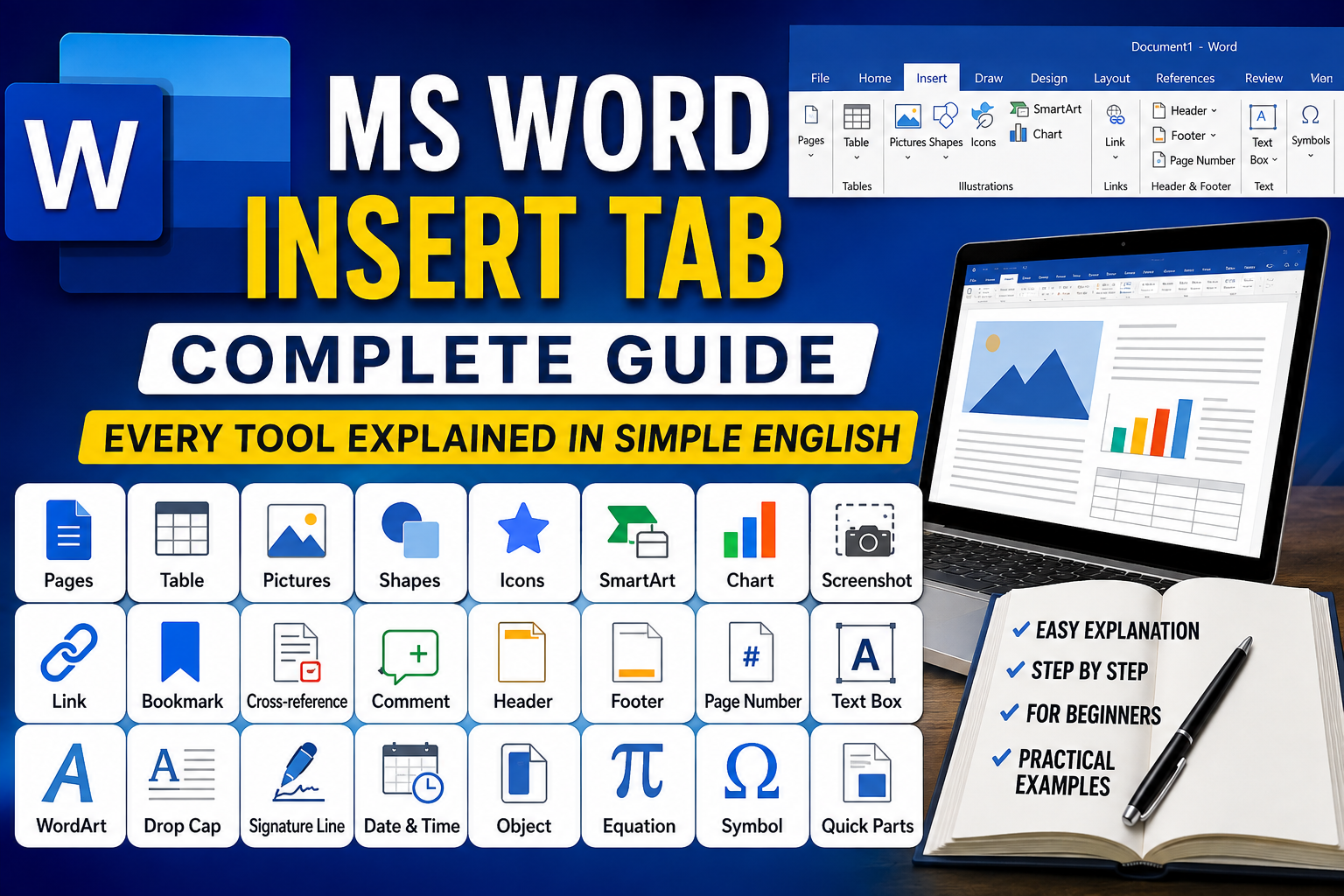
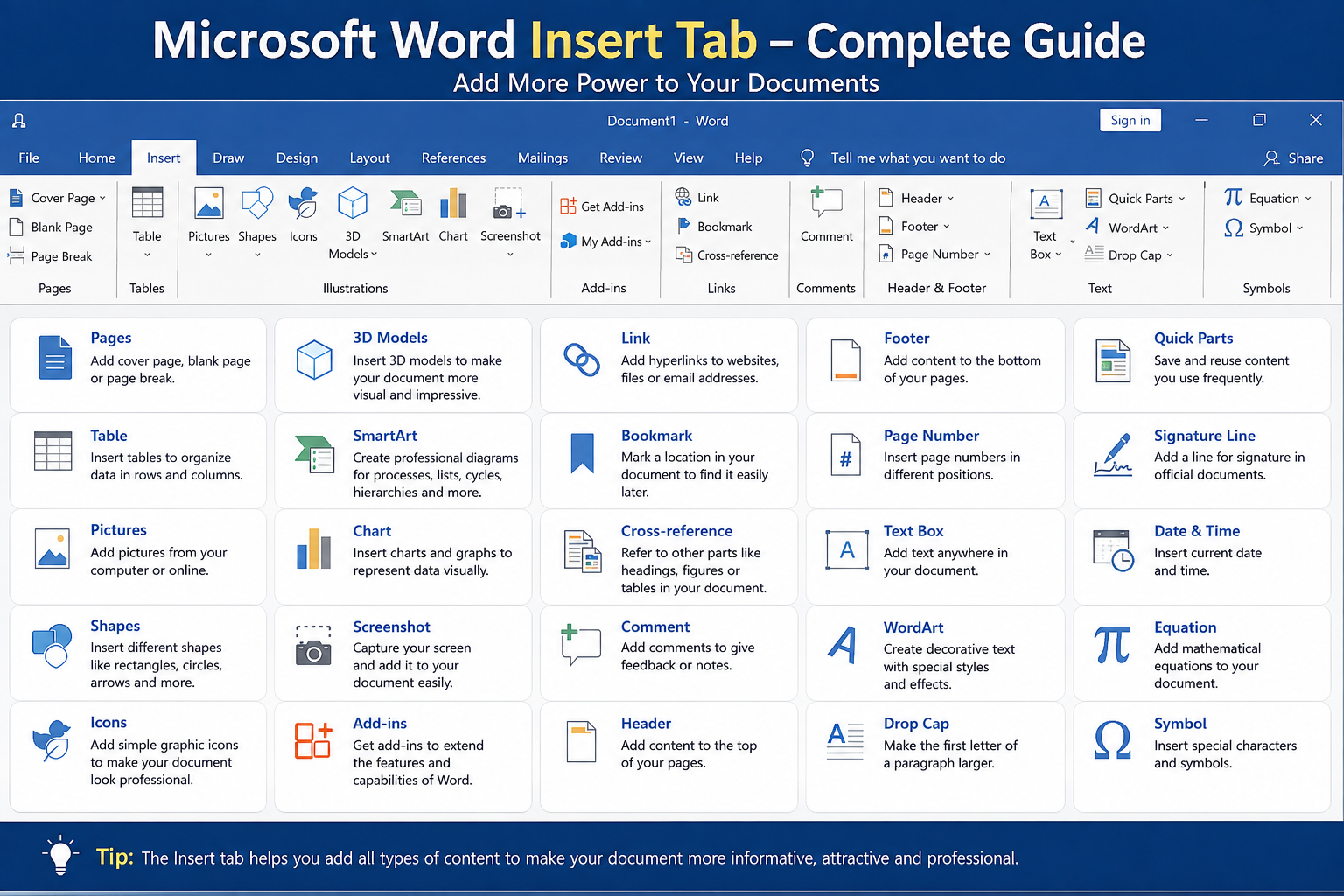
The Insert tab is one of the most useful tabs in Microsoft Word. It allows us to add different types of content to a document, such as pictures, tables, shapes, charts, links, headers, footers, page numbers and symbols.
In this guide, we will learn about the important tools available in the Insert tab and understand what each tool does in simple English.
Note: The exact buttons can vary depending on your Word version, such as Microsoft 365, Word 2024 or Word 2021.
1. Pages
The Pages group helps you add different types of pages to your document.
Cover Page
Cover Page allows you to add a ready-made cover page to your document.
It is useful for:
- School projects
- College assignments
- Reports
- Business documents
- Presentations
You can choose a design and then change the title, name, date and other information.
Blank Page
Blank Page adds a completely empty page to your document.
For example, if you want to start a new section on a fresh page, you can use this option.
Page Break
Page Break moves the content after the cursor to a new page.
For example, if you finish one chapter and want the next chapter to start on a new page, use Page Break.
2. Table
The Table tool is used to organize information into rows and columns.
For example:
| Name | Age | City |
|---|---|---|
| Rahul | 25 | Delhi |
| Aman | 28 | Mumbai |
| Neha | 24 | Jaipur |
To insert a table:
Insert → Table → Select rows and columns
You can also draw a table or convert existing text into a table.
Tables are very useful for:
- Student marks
- Price lists
- Employee information
- Comparisons
- Schedules
- Data lists
3. Pictures
The Pictures tool allows you to add images to your document.
You can insert a picture from your computer or, depending on your Word version, use available online/stock image options.
Pictures can make a document more attractive and easier to understand.
For example, you can add:
- Photos
- Logos
- Screenshots
- Diagrams
- Illustrations
4. Shapes
Shapes lets you add different shapes to your document.
Some common shapes include:
- Rectangle
- Circle
- Triangle
- Arrow
- Line
- Callout
Shapes are useful when creating diagrams, flowcharts and simple designs.
For example, you can use arrows to show the direction of a process.
5. Icons
The Icons tool lets you add simple graphic icons to a document.
For example, you can use icons for:
- Phone
- Location
- Computer
- People
- Social media
Icons are useful for making documents look cleaner and more professional.
6. 3D Models
3D Models allows you to insert three-dimensional models into a document when the feature is available in your Word version.
You can use 3D models to explain objects in a more visual way.
For example:
- Human body
- Animals
- Machines
- Vehicles
- Scientific objects
Microsoft lists 3D Models among the Insert options in supported Word versions.
7. SmartArt
SmartArt is one of the most useful Insert tools for creating professional diagrams.
You can use SmartArt for:
- Processes
- Lists
- Hierarchies
- Cycles
- Relationships
For example:
Plan → Design → Create → Publish
Instead of writing these steps as normal text, you can display them using a SmartArt graphic.
8. Chart
The Chart tool allows you to create graphs and charts.
Common chart types include:
- Column Chart
- Bar Chart
- Line Chart
- Pie Chart
- Area Chart
Charts are useful when you want to explain numbers visually.
For example, you can create a chart showing monthly sales.
Microsoft Word supports inserting charts directly from the Insert tab.
9. Screenshot
The Screenshot tool can help you capture an available window or screen area and insert it into your document.
This is especially useful for:
- Computer tutorials
- Software guides
- Online classes
- Technical documentation
For example, if you are writing an MS Word tutorial, screenshots can help readers understand where to click.
10. Add-ins
Add-ins can extend the functionality of Microsoft Word.
They can provide additional tools and services inside Word.
For example, some add-ins can help with:
- Writing
- Research
- Productivity
- Language tools
The available add-ins depend on your Word version and account.
11. Links
The Links section is used to connect your document to websites or other locations.
Link
A Link or hyperlink allows you to connect text or an object to a website or another location.
For example:
Visit Microsoft Word Help
You can click the link and open the related webpage.
Microsoft also supports links to locations inside the same document, such as headings or bookmarks.
Bookmark
A Bookmark marks a specific location in your document.
It is useful when you have a long document and want to quickly return to a particular section.
Cross-reference
Cross-reference can help you refer to another part of the same document, such as a heading, figure or table.
This is especially useful for reports and long documents.
12. Comments
The Comment feature allows you to add notes or feedback to a document.
For example, a teacher can add a comment:
“Please check this paragraph.”
Another person can read, reply to or resolve the comment.
Comments are especially useful when multiple people are working on the same document.
13. Header
A Header appears at the top of your pages.
You can add:
- Document title
- Company name
- Logo
- Author name
- Other useful information
For example:
Entertainment Dhamaka | Microsoft Word Tutorial
You can insert or edit headers from Insert → Header.
14. Footer
A Footer appears at the bottom of your pages.
You can add:
- Page numbers
- Website name
- Copyright information
- Document title
- Date
For example:
Page 1 | Microsoft Word Tutorial
Word provides built-in header and footer designs as well as options to create your own.
15. Page Number
The Page Number tool automatically adds page numbers to your document.
You can place page numbers:
- At the top
- At the bottom
- On the left
- In the center
- On the right
You can also use formats such as:
Page 1 of 10
This is especially useful for reports, assignments and books.
16. Text Box
A Text Box allows you to place text inside a separate box.
It is useful for:
- Important notes
- Tips
- Side information
- Quotes
- Titles
You can move the text box anywhere on the page.
17. Quick Parts
Quick Parts helps you save and reuse content that you frequently use.
For example, if you often use the same:
- Company information
- Address
- Signature
- Document text
you can save it and insert it again when needed.
This can save time when creating repeated documents.
18. WordArt
WordArt lets you create decorative text.
For example:
WELCOME
You can apply different styles, effects and designs to make the text stand out.
Word provides a WordArt command from the Insert tab.
19. Drop Cap
A Drop Cap makes the first letter of a paragraph larger than the other letters.
For example:
Once upon a time…
The large first letter creates a magazine or newspaper-style design.
20. Signature Line
A Signature Line provides a space for a person to sign a document.
It can be useful for:
- Business documents
- Agreements
- Official forms
- Approval documents
The exact signature options can depend on your Word setup.
21. Date & Time
The Date & Time tool allows you to insert the current date or time into your document.
You can choose from different date and time formats.
For example:
August 8, 2026
or
08/08/2026
This is useful for letters, reports and official documents.
22. Object
The Object tool allows you to insert content from another file or application into your Word document.
For example, you can insert content from an existing Word document using Text from File.
This can be useful when combining information from different documents.
23. Equation
The Equation tool is designed for mathematical and scientific formulas.
For example:
A = πr²
You can create complex mathematical expressions without typing them as normal text.
It is useful for:
- Mathematics
- Physics
- Engineering
- Science
- Education
24. Symbol
The Symbol tool allows you to insert special characters that may not be available directly on your keyboard.
Examples include:
© ® ™ € £ ± ° √
You can use symbols in reports, educational documents and professional documents.
Insert Tab Makes Word More Powerful
The Insert tab is much more than a place to add pictures.
It allows you to bring different types of content together in one document.
You can create a professional document using:
Text + Tables + Pictures + Shapes + Charts + SmartArt + Links + Headers + Footers + Page Numbers + Symbols
That is why learning the Insert tab is important for every Microsoft Word user.
Final Thoughts
The Insert tab in Microsoft Word gives you many tools to create better and more professional documents.
If you are a student, teacher, office employee or beginner, learning these tools can save time and make your documents much easier to understand.
Start with the basic tools such as Table, Pictures, Shapes, Links, Header, Footer and Page Number. Once you become comfortable with them, move on to SmartArt, Charts, WordArt, Equations and other advanced options.
The more you practice, the easier Microsoft Word becomes.