



Editing Group in Microsoft Word: Find, Replace, Go To और Select का Complete Guide (2026)
Microsoft Word दुनिया का सबसे लोकप्रिय Word Processing Software है। इसका उपयोग Documents बनाने, Edit करने और Format करने के लिए किया जाता है। यदि आप MS Word सीख रहे हैं या CCC, DCA, ADCA, PGDCA, BCA, Computer Course या Competitive Exams की तैयारी कर रहे हैं, तो Editing Group के बारे में जानकारी होना बेहद जरूरी है।
Thank you for reading this post, don't forget to subscribe!इस लेख में हम Editing Group in Microsoft Word के सभी Commands जैसे Find, Replace, Go To और Select को आसान भाषा में उदाहरण सहित समझेंगे।
Editing Group क्या है?
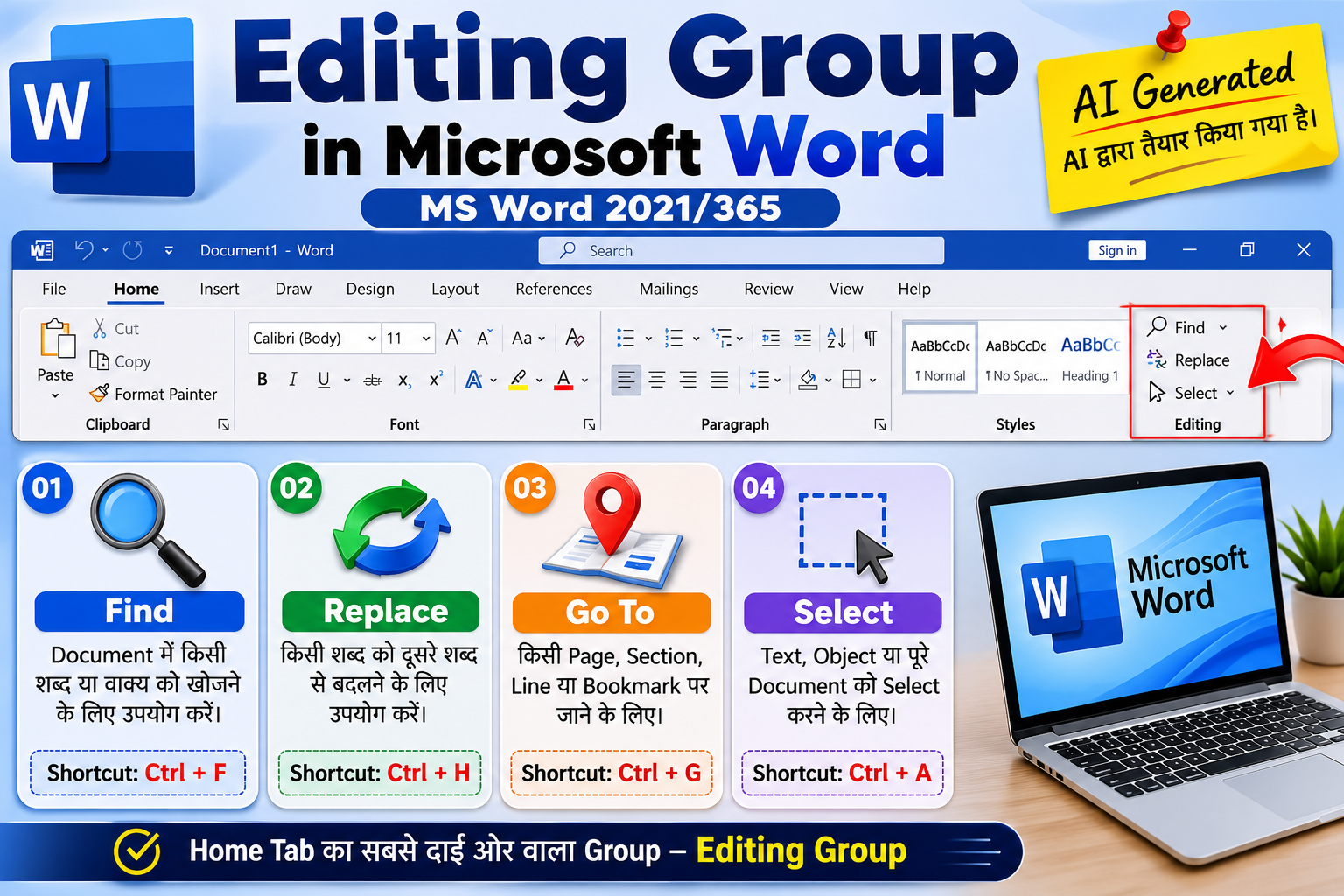
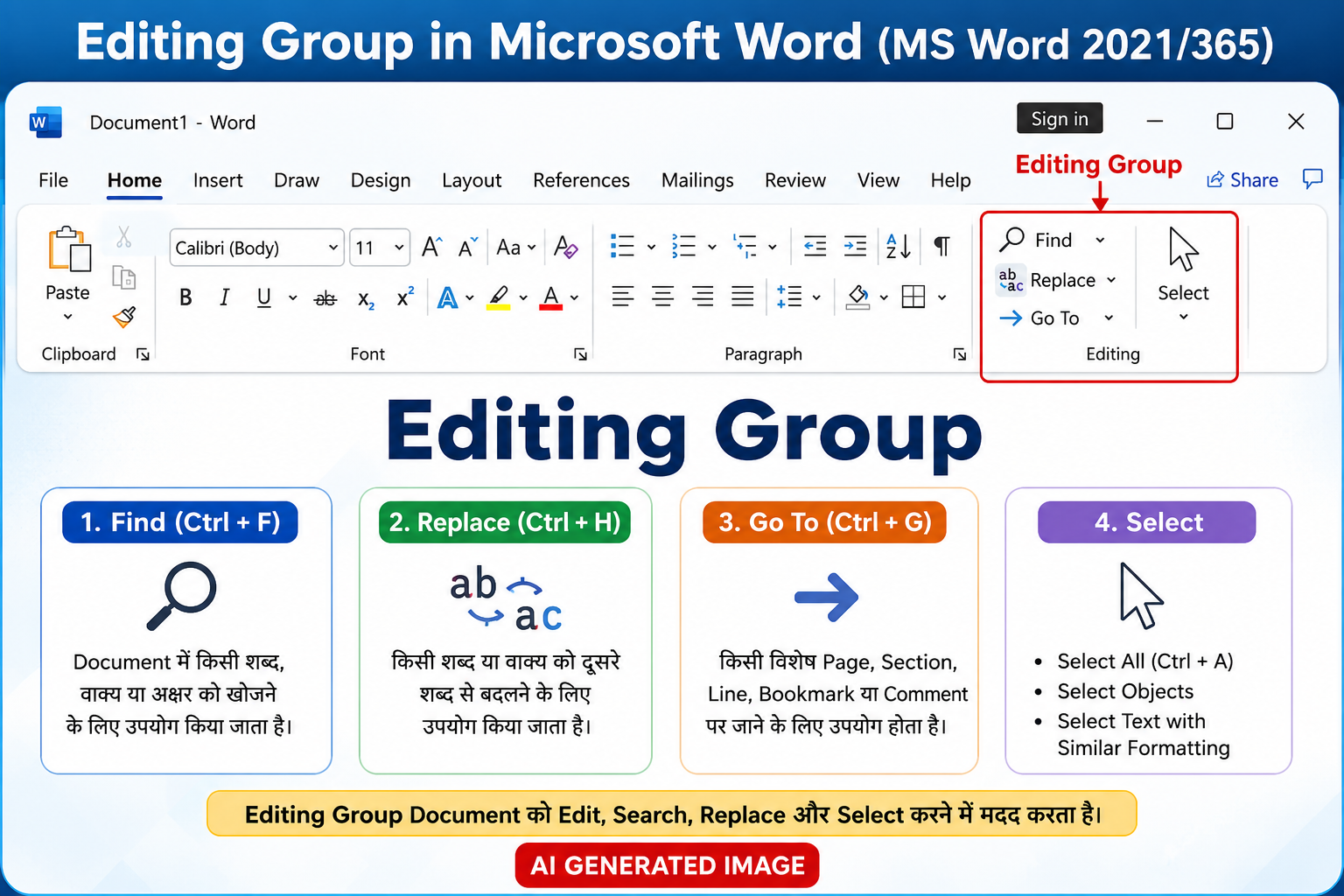
Editing Group Microsoft Word के Home Tab का अंतिम (Last) Group होता है। इसकी मदद से आप किसी भी Document में Text खोज सकते हैं, किसी शब्द को दूसरे शब्द से बदल सकते हैं, किसी विशेष Page पर जा सकते हैं और Text या Objects को आसानी से Select कर सकते हैं।
यदि आपका Document 100 या 500 Pages का भी हो, तो Editing Group की सहायता से आप कुछ ही सेकंड में आवश्यक जानकारी तक पहुँच सकते हैं।
Editing Group कहाँ होता है?
- Tab: Home Tab
- Position: सबसे दाईं (Right Side)
Editing Group में सामान्यतः चार मुख्य Commands होती हैं:
- Find
- Replace
- Go To
- Select
1. Find (Ctrl + F)
Find Command का उपयोग Document में किसी भी शब्द, वाक्य, संख्या या अक्षर को खोजने के लिए किया जाता है।
उपयोग
- किसी Keyword को Search करना
- बड़े Documents में जानकारी ढूँढना
- किसी Topic को तुरंत Locate करना
Shortcut Key
Ctrl + F
उदाहरण
यदि आपकी File में “Microsoft” शब्द 50 बार लिखा है, तो Find Command सभी स्थानों को तुरंत दिखा देगी।
2. Replace (Ctrl + H)
Replace Command की सहायता से किसी शब्द को दूसरे शब्द से बदला जा सकता है।
उपयोग
- Spelling Mistake ठीक करना
- Company Name बदलना
- पूरे Document में एक साथ बदलाव करना
Shortcut Key
Ctrl + H
उदाहरण
यदि पूरे Document में “MS Office 2019” लिखा है और आपको उसे “Microsoft 365” करना है, तो Replace Command कुछ ही सेकंड में पूरा काम कर देगी।
3. Go To (Ctrl + G)
Go To Command की मदद से आप किसी विशेष Page, Line, Section, Bookmark या Comment पर तुरंत पहुँच सकते हैं।
उपयोग
- Page Number पर जाना
- Bookmark Open करना
- किसी Section तक पहुँचना
Shortcut Key
Ctrl + G
उदाहरण
यदि आपका Document 250 Pages का है और आपको सीधे Page 180 पर जाना है, तो Go To सबसे तेज़ विकल्प है।
4. Select
Select Command का उपयोग Document के Text या Objects को चुनने (Select) के लिए किया जाता है।
मुख्य विकल्प
Select All (Ctrl + A)
पूरे Document को एक साथ Select करता है।
Select Objects
Document में मौजूद Pictures, Shapes और Objects को Select करता है।
Select Text with Similar Formatting
एक जैसी Formatting वाले सभी Text को एक साथ Select करता है।
Editing Group के फायदे
- बड़े Documents में Search करना आसान बनाता है।
- बार-बार होने वाले बदलाव कुछ सेकंड में पूरे हो जाते हैं।
- Editing का समय कम लगता है।
- Professional Documents तैयार करने में मदद मिलती है।
- Productivity बढ़ती है।
- Manual Editing की आवश्यकता कम हो जाती है।
Shortcut Keys
| Command | Shortcut |
|---|---|
| Find | Ctrl + F |
| Replace | Ctrl + H |
| Go To | Ctrl + G |
| Select All | Ctrl + A |
Editing Group का उपयोग कहाँ होता है?
- Office Work
- School Projects
- College Assignments
- Resume Editing
- Research Documents
- Books और Reports
- Government Documents
- Competitive Exam Preparation
Frequently Asked Questions (FAQs)
Editing Group किस Tab में होता है?
Home Tab में।
Find की Shortcut Key क्या है?
Ctrl + F
Replace की Shortcut Key क्या है?
Ctrl + H
Go To की Shortcut Key क्या है?
Ctrl + G
पूरे Document को Select करने की Shortcut Key क्या है?
Ctrl + A
क्या Editing Group Microsoft 365 और Word 2021 दोनों में उपलब्ध है?
हाँ, Editing Group Microsoft Word 2016, 2019, 2021 और Microsoft 365 के सभी आधुनिक संस्करणों में उपलब्ध है।
निष्कर्ष
Microsoft Word का Editing Group Document Editing को आसान, तेज़ और अधिक प्रभावी बनाता है। चाहे आपको किसी शब्द को ढूँढना हो, उसे बदलना हो या पूरे Document को Select करना हो, यह Group हर स्थिति में उपयोगी है। यदि आप Computer Course कर रहे हैं या MS Word सीखना चाहते हैं, तो Editing Group का अभ्यास अवश्य करें।