



Microsoft Word 2021 is one of the most widely used word-processing applications for creating documents, reports, letters, assignments, resumes and professional files. Among its many features, the Page Layout section is especially important because it allows users to control how a document looks on the page.
Thank you for reading this post, don't forget to subscribe!In Word 2021, many of these features are available under the Layout tab. Using this tab, you can change page margins, paper size, orientation, columns, page breaks, paragraph spacing and other layout settings.
Whether you are a student, office employee, teacher or beginner learning MS Word, understanding these options can make your documents look much more professional.
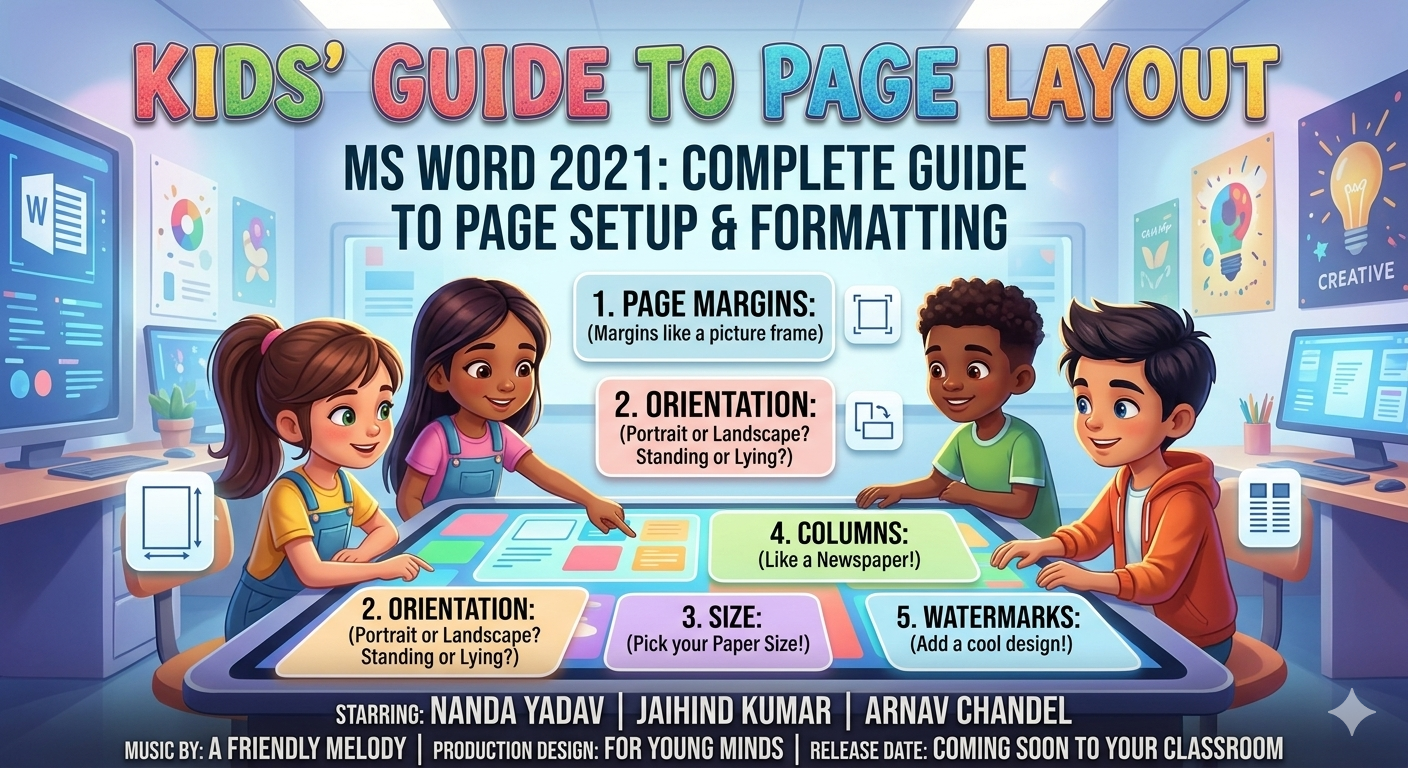
What Is the Page Layout Tab in MS Word 2021?
The Page Layout or Layout tab contains tools that control the structure and appearance of your document pages.
For example, you can use it to:
- Change page margins
- Select paper size
- Switch between Portrait and Landscape
- Create multiple columns
- Add page or section breaks
- Adjust paragraph indentation
- Change paragraph spacing
- Arrange pictures and shapes
These features are particularly useful when preparing documents for printing.
Main Options in the MS Word 2021 Layout Tab
The Layout tab contains several important groups and commands. Let’s understand them one by one.
1. Margins
Margins determine the empty space between the document content and the edges of the paper.
Word provides several preset margin options, making it easy to change the page layout without manually entering measurements.
To change margins:
Layout → Margins
You may find options such as:
- Normal
- Narrow
- Moderate
- Wide
- Mirrored
- Custom Margins
Why Are Margins Important?
Proper margins make a document easier to read and print. They also prevent text from appearing too close to the edge of the paper.
For most everyday documents, the Normal margin setting is a good starting point.
2. Orientation
The Orientation option determines whether your page is vertical or horizontal.
There are two main choices:
Portrait
Portrait orientation is vertical and is commonly used for:
- Letters
- Applications
- Reports
- Assignments
- Resumes
- General documents
Landscape
Landscape orientation is horizontal and is useful for:
- Wide tables
- Charts
- Presentations printed on paper
- Large spreadsheets
- Documents containing wide images
To change orientation:
Layout → Orientation → Portrait or Landscape
3. Paper Size
The Size option lets you select the paper format for your document.
Common paper sizes include:
- A4
- A5
- Letter
- Legal
- Executive
For many office, school and personal documents in India, A4 is commonly used.
To select A4:
Layout → Size → A4
Remember that your Word page size and your printer’s selected paper size should normally match for predictable printing results.
4. Columns
The Columns feature allows you to divide text into multiple vertical sections.
This is particularly useful when creating:
- Newsletters
- Brochures
- Magazine-style documents
- Notices
- Information sheets
You can choose options such as:
- One
- Two
- Three
- Left
- Right
- More Columns
For example:
Layout → Columns → Two
will divide the text area into two columns.
5. Breaks
The Breaks option is useful when you need greater control over where pages or sections begin.
There are two important types of breaks:
Page Break
A Page Break tells Word to start the following content on a new page.
You can also quickly insert one using:
Ctrl + Enter
Section Break
A Section Break divides a document into separate sections.
This becomes particularly useful when different parts of the same document need different formatting.
For example, you could have:
- Portrait pages at the beginning
- A Landscape page containing a wide table
- Portrait pages again afterward
Section breaks make this type of layout possible.
6. Line Numbers
Word can display numbers beside the lines of a document.
The Line Numbers feature can be useful for certain technical, legal, educational or reference documents where individual lines need to be identified.
Depending on the document, you can choose different numbering behaviors, such as continuous numbering or restarting numbering for pages or sections.
7. Hyphenation
Hyphenation controls how long words are handled when they reach the end of a line.
Instead of leaving large gaps in some justified text, Word may divide an appropriate word using a hyphen.
The available settings can include:
- None
- Automatic
- Manual
This feature can help improve the appearance of certain professionally formatted documents.
8. Paragraph Settings
The Layout tab also includes important paragraph controls.
Two major settings are:
Indent
Indent controls how far a paragraph is positioned from the left or right margin.
You can adjust:
- Left Indent
- Right Indent
For example, increasing the left indent moves the selected paragraph further away from the left margin.
Spacing
Spacing controls the amount of space before and after paragraphs.
You can adjust:
- Before
- After
Proper paragraph spacing can make a document much easier to read without adding unnecessary blank lines.
9. Arrange Tools
When you insert pictures, shapes, text boxes or other objects into a Word document, the Arrange tools become useful.
Depending on the selected object, you may see options such as:
Position
Controls where an object is placed on the page.
Wrap Text
Determines how text flows around an image or object.
Common choices include:
- In Line with Text
- Square
- Tight
- Through
- Top and Bottom
- Behind Text
- In Front of Text
Bring Forward
Moves an object toward the front when multiple objects overlap.
Send Backward
Moves an object behind another object.
Align
Helps line up multiple objects neatly.
Group
Combines multiple selected objects so that they can be moved or formatted together.
Rotate
Allows you to rotate a selected object.
How to Create an A4 Document in MS Word 2021
If you are preparing a normal document for printing, you can use the following basic setup:
Step 1
Open Microsoft Word 2021 and create a new document.
Step 2
Go to:
Layout → Size → A4
Step 3
Select:
Layout → Orientation → Portrait
Step 4
Open:
Layout → Margins → Normal
Step 5
Type and format your content.
Step 6
Before printing, open File → Print and check the preview.
This simple process can help you create a properly structured document.
Portrait vs Landscape
| Feature | Portrait | Landscape |
|---|---|---|
| Page Shape | Vertical | Horizontal |
| Best For | Letters and reports | Wide tables and charts |
| Width | Smaller | Larger |
| Height | Larger | Smaller |
Choosing the correct orientation can make a big difference when working with tables and images.
How to Change Page Layout for Only One Page
Sometimes you don’t want to change the orientation of the entire document.
For example, imagine a 10-page report where only page 5 contains a wide table.
You can use Section Breaks to create a separate section for that page and then change its orientation to Landscape.
This allows different sections of the same Word document to have different page layouts.
Page Layout Settings for Printing
Before printing a document, it is a good idea to review the following:
- Paper Size
- Orientation
- Margins
- Page Breaks
- Section Breaks
- Paragraph Spacing
- Images and Object Positions
Then use:
File → Print
to preview how the document will appear.
This can help you identify unwanted blank pages, incorrectly positioned images or text that doesn’t fit properly.
Useful MS Word Keyboard Shortcuts
Here are some shortcuts that can make document creation faster:
| Action | Shortcut |
|---|---|
| Page Break | Ctrl + Enter |
| Ctrl + P | |
| Save | Ctrl + S |
| Select All | Ctrl + A |
| Undo | Ctrl + Z |
| Redo | Ctrl + Y |
Common Uses of the Layout Tab
The Layout tab can be useful for many types of documents.
For Students
You can use it to prepare:
- Assignments
- Projects
- Practical files
- School reports
For Office Work
It can help with:
- Business reports
- Letters
- Notices
- Official documents
For Teachers
It can be useful for creating:
- Worksheets
- Question papers
- Study material
- Classroom handouts
For Designers and Content Creators
Columns, image positioning and page breaks can help create more visually organized documents.
Frequently Asked Questions
Where is the Page Layout option in Word 2021?
In Microsoft Word 2021, many page layout controls are available under the Layout tab.
How do I make a page A4 size?
Go to:
Layout → Size → A4
How do I make a page Landscape?
Go to:
Layout → Orientation → Landscape
How can I create two columns?
Go to:
Layout → Columns → Two
How do I insert a new page?
You can press Ctrl + Enter to insert a Page Break.
Can one page be Landscape while the others are Portrait?
Yes. You can use Section Breaks to apply different page settings to different sections.
Final Thoughts
The MS Word 2021 Page Layout/ Layout tab is an essential part of document formatting. Once you understand Margins, Orientation, Size, Columns, Breaks, Indentation, Spacing and Arrange tools, you can create documents that are cleaner, easier to read and better prepared for printing.
For beginners, the best way to learn these features is to open Word and experiment with each option on a sample document. Even a few minutes of practical practice can make these tools much easier to understand.
Written by Entertainment Dhamaka