



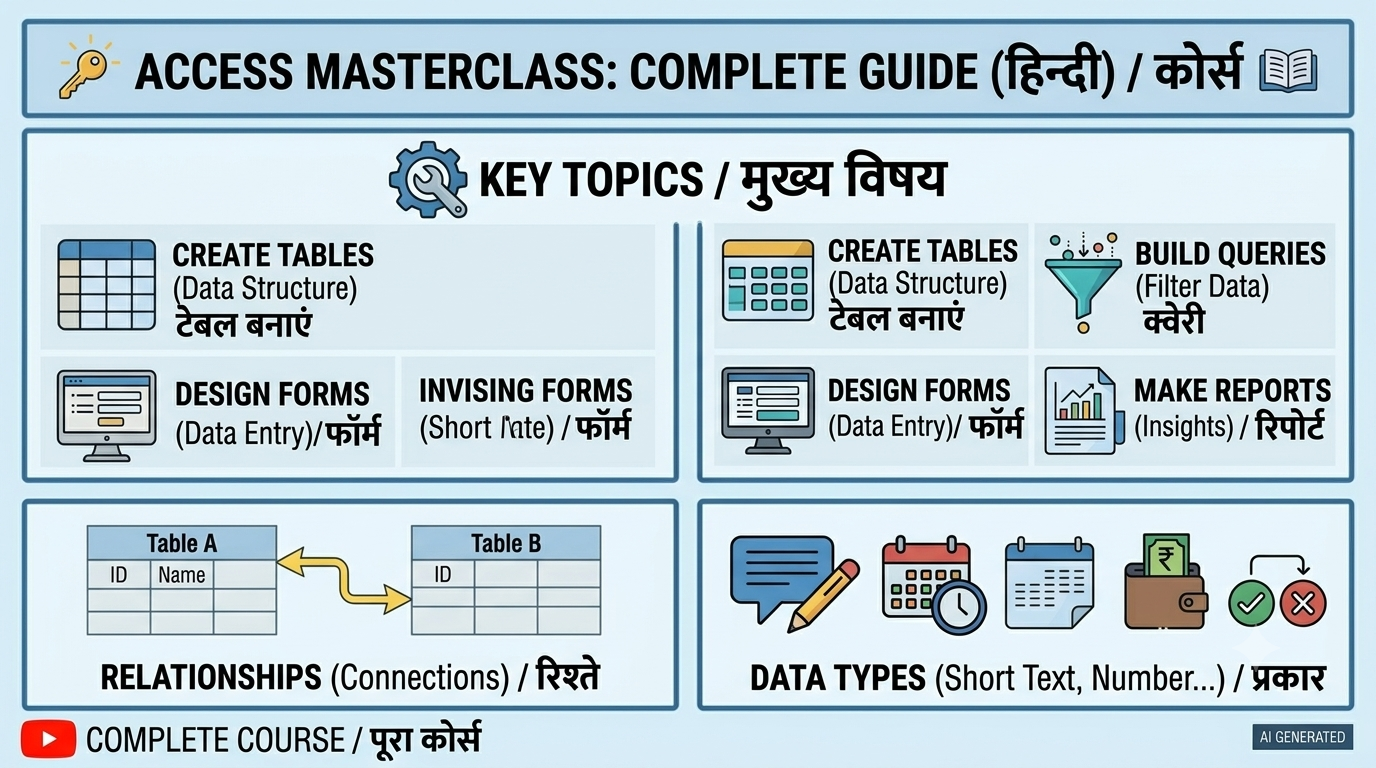
Microsoft Access is a database management software developed by Microsoft. It is designed to help users store, organize, manage, search, and retrieve information in an easy and structured way.
Thank you for reading this post, don't forget to subscribe!If you have a large amount of information, keeping everything in separate Excel sheets or files can become difficult. Microsoft Access allows you to keep related information together in a database and work with it efficiently.
For example, a school can use Microsoft Access to manage student records, fees, attendance, courses, teachers, and other information.
What is Microsoft Access?
Microsoft Access is a Database Management System (DBMS) that allows users to create and manage databases.
In simple words, MS Access helps you store a large amount of information in an organized form and find the required information whenever you need it.
For example, suppose a computer institute has 2,000 students. The institute can create an Access database containing:
- Student Name
- Student ID
- Mobile Number
- Address
- Course
- Admission Date
- Fees
- Attendance
- Certificate Status
Instead of searching through hundreds of files, the institute can use Access to quickly find and manage the required student information.
What is a Database?
A database is an organized collection of information that can be easily accessed, managed, and updated.
Think of a database as a digital filing system.
For example, a shop may have information about thousands of products. Instead of maintaining separate files for every product, the shop can store all product information in a database.
The database can contain information such as:
- Product Name
- Product ID
- Price
- Quantity
- Supplier
- Purchase Date
Microsoft Access provides tools that make it easier to create and manage this type of database.
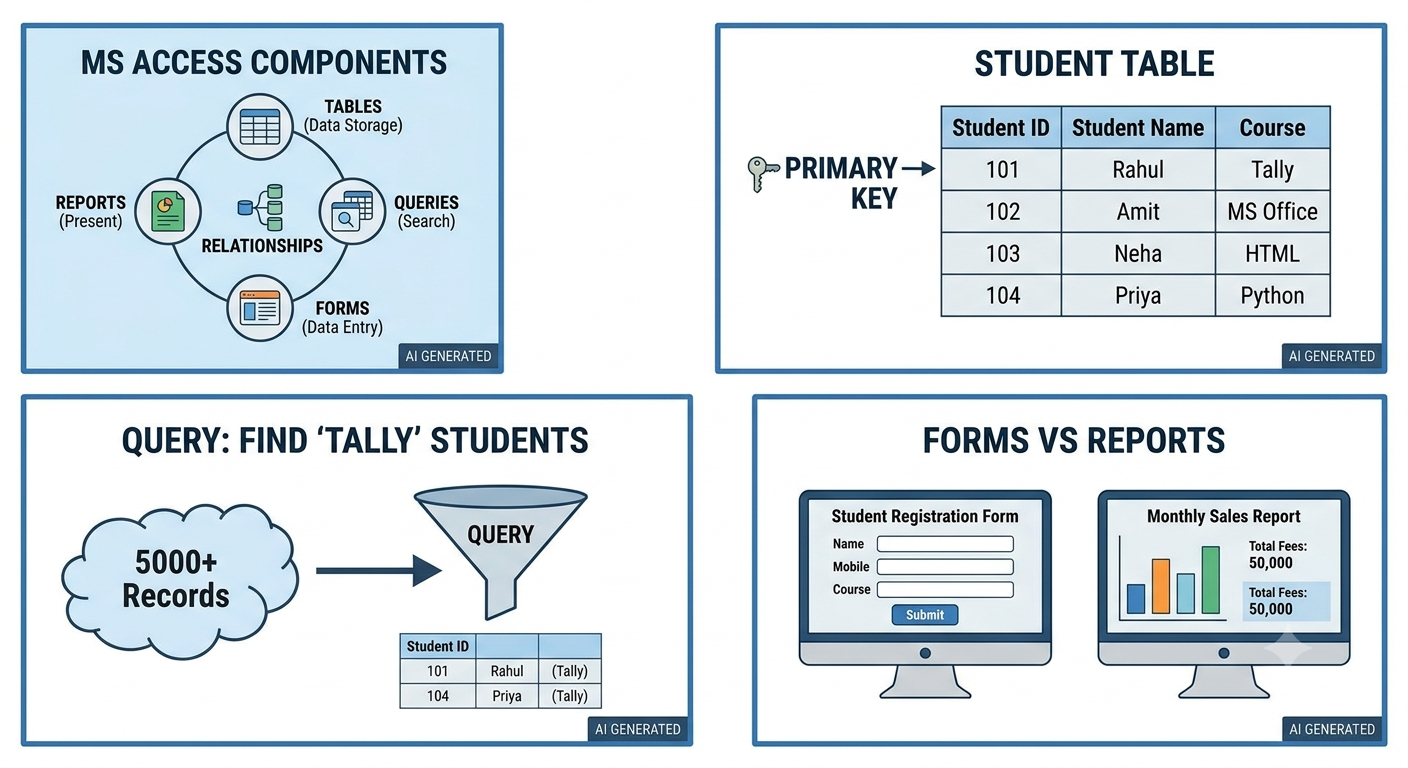
Main Components of Microsoft Access
Microsoft Access mainly works with several important objects:
- Tables
- Queries
- Forms
- Reports
- Relationships
- Macros
- Modules
Let’s understand each one in simple language.
1. Tables in Microsoft Access
A Table is the main place where data is stored in an Access database.
A table is made up of Rows and Columns.
For example:
| Student ID | Student Name | Course | Mobile |
|---|---|---|---|
| 101 | Rahul | Tally | 98XXXXXX01 |
| 102 | Amit | MS Office | 98XXXXXX02 |
| 103 | Neha | HTML | 98XXXXXX03 |
Here:
Column = Field
For example:
- Student Name
- Course
- Mobile
These are fields.
Row = Record
Each row contains the complete information about one student, so each row is a record.
Tables are the foundation of an Access database because the actual information is stored inside them.
2. Fields and Records
Understanding Fields and Records is important when learning MS Access.
Field
A field represents one type of information.
For example:
Name, Mobile Number, Address, and Course are fields.
Record
A record represents a complete set of information about one person, product, or item.
For example:
101 | Rahul | Tally | 98XXXXXX01
This complete row is one record.
3. Primary Key
A Primary Key is a field that uniquely identifies every record in a table.
For example, in a student database, you can use Student ID as the Primary Key.
| Student ID | Name |
| 101 | Rahul |
| 102 | Amit |
| 103 | Neha |
Every student has a different Student ID.
A Primary Key helps prevent duplicate records and makes it easier to connect different tables.
4. Queries in Microsoft Access
A Query is used to search, filter, and retrieve specific information from a database.
Suppose your database contains 5,000 students and you want to find only students whose fees are pending.
Instead of checking every record manually, you can create a query.
For example:
Fees = Pending
The query can show only students whose fees are pending.
You can also create queries to find:
- Students enrolled in a particular course
- Customers from a specific city
- Products below a certain stock level
- Employees who joined after a particular date
- Records matching specific conditions
Queries are one of the most useful features of Microsoft Access.
5. Forms in Microsoft Access
A Form provides a simple and user-friendly way to enter and view data.
Entering information directly into a table may not always be convenient.
Instead, you can create a form such as:
Student Registration Form
The form can contain:
- Student Name
- Father/Mother Name
- Mobile Number
- Address
- Course
- Admission Date
- Fees
The user simply fills in the form, and the information can be stored in the database.
Forms are especially useful when people who are not familiar with database tables need to enter information.
6. Reports in Microsoft Access
A Report is used to present database information in an organized format.
Reports are useful when you want to view, print, or share information.
For example, a computer institute can create:
- Student List Report
- Fees Report
- Attendance Report
- Course Report
- Certificate Report
A business can create:
- Sales Report
- Stock Report
- Customer Report
- Purchase Report
Reports make database information easier to understand and present.
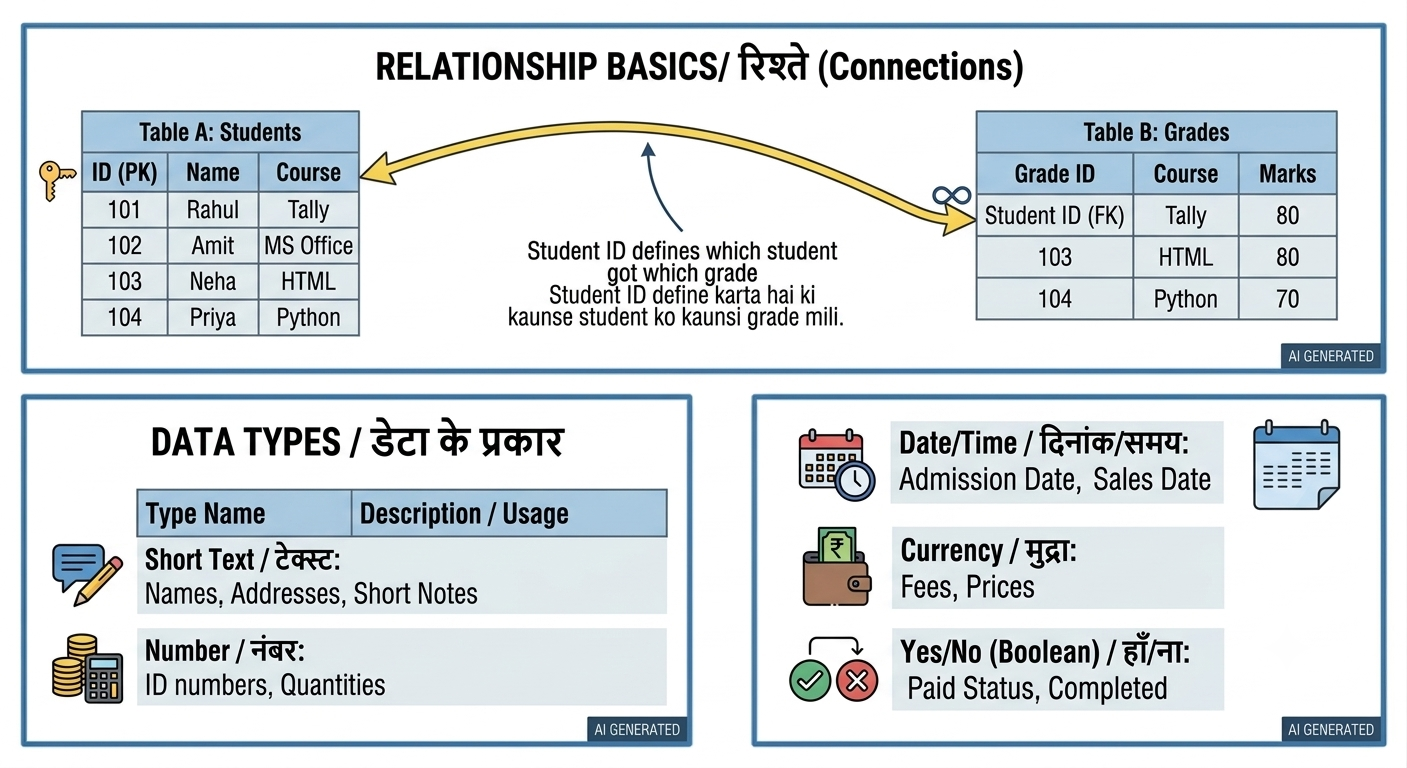
7. Relationships Between Tables
In a real database, you may need more than one table.
For example, a computer institute could have:
Student Table
- Student ID
- Student Name
- Course
Fees Table
- Fees ID
- Student ID
- Amount
- Payment Date
These tables can be connected using Student ID.
This connection is called a Relationship.
Relationships help organize data and can reduce unnecessary duplication.
8. Data Types in Microsoft Access
When creating a table, each field needs an appropriate Data Type.
Common data types include:
Short Text
Used for names, cities, courses, etc.
Number
Used for numerical values.
Date/Time
Used for dates and times.
Currency
Used for money-related information such as fees and prices.
Yes/No
Used for information that has two possible values.
For example:
Paid = Yes
Paid = No
AutoNumber
Automatically generates a unique number for each new record.
Choosing the correct data type helps keep your database accurate and organized.
9. Macros
A Macro can be used to automate certain tasks in Microsoft Access.
For example, you can create a button that automatically:
- Opens a form
- Runs a query
- Opens a report
- Performs a specific database action
Macros can save time when the same task needs to be performed repeatedly.
10. VBA in Microsoft Access
Microsoft Access also supports VBA (Visual Basic for Applications).
VBA can be used to create more advanced automation and customized database functionality.
For example, advanced users can use VBA to:
- Automate tasks
- Create custom buttons
- Add special functions
- Control forms
- Perform complex operations
However, beginners do not need to learn VBA immediately. It is better to first understand Tables, Queries, Forms, Reports, and Relationships.
Where is Microsoft Access Used?
Microsoft Access can be used in many different areas.
Schools and Colleges
Educational institutions can use Access for:
- Student records
- Admission records
- Fees
- Attendance
- Course information
Offices
Offices can use it for:
- Employee records
- Customer information
- Contact lists
- Inventory
- Reports
Shops and Businesses
Businesses can manage:
- Products
- Stock
- Customers
- Sales
- Purchases
Computer Institutes
Computer training centers can use Access to manage:
- Student registration
- Course details
- Fees
- Attendance
- Certificates
Microsoft Access vs Microsoft Excel
Microsoft Access and Microsoft Excel can both store data, but they are designed for different purposes.
Microsoft Excel
Excel is mainly used for:
- Calculations
- Spreadsheets
- Charts
- Data analysis
- Financial calculations
Microsoft Access
Access is mainly used for:
- Database management
- Related tables
- Queries
- Forms
- Reports
- Structured records
In simple words:
Excel = Spreadsheet and Calculations
Access = Database Management
For example, if you want to calculate monthly expenses, Excel may be more convenient.
If you want to manage thousands of customer records using multiple connected tables, Access may be more suitable.
Advantages of Microsoft Access
Microsoft Access offers several advantages:
Easy to Learn
Its interface is relatively easy for beginners who are familiar with Microsoft Office.
Organized Data
Information can be stored in properly structured tables.
Easy Searching
Queries allow users to quickly find specific information.
Forms for Data Entry
Forms make data entry easier and more user-friendly.
Professional Reports
Reports can present information in an organized and printable format.
Table Relationships
Different tables can be connected to manage related information.
Automation
Macros and VBA can be used to automate repetitive tasks.
Limitations of Microsoft Access
Although Microsoft Access is useful, it is not the best solution for every type of database.
For very large enterprise applications, organizations may use dedicated database systems designed for high numbers of users and large workloads.
Access is generally more suitable for small and medium-sized database applications, depending on the specific requirements.
How to Learn Microsoft Access
If you are a beginner, you can learn MS Access step by step.
A good learning order is:
Step 1: Understand Database Basics
Step 2: Create Tables
Step 3: Learn Fields and Data Types
Step 4: Understand Primary Keys
Step 5: Create Relationships
Step 6: Learn Queries
Step 7: Create Forms
Step 8: Create Reports
Step 9: Learn Macros
Step 10: Learn Basic VBA
Once you understand these topics, you can start creating your own small database projects.
Conclusion
Microsoft Access is a powerful and useful database management software from Microsoft.
It helps users store, organize, search, update, and present information in a structured way.
The most important parts of MS Access are Tables, Queries, Forms, Reports, and Relationships.
For students, office workers, business owners, computer teachers, and beginners interested in database management, learning Microsoft Access can be a valuable computer skill.
If you understand how Tables store data, Queries find data, Forms enter data, and Reports present data, you already understand the basic working of Microsoft Access.